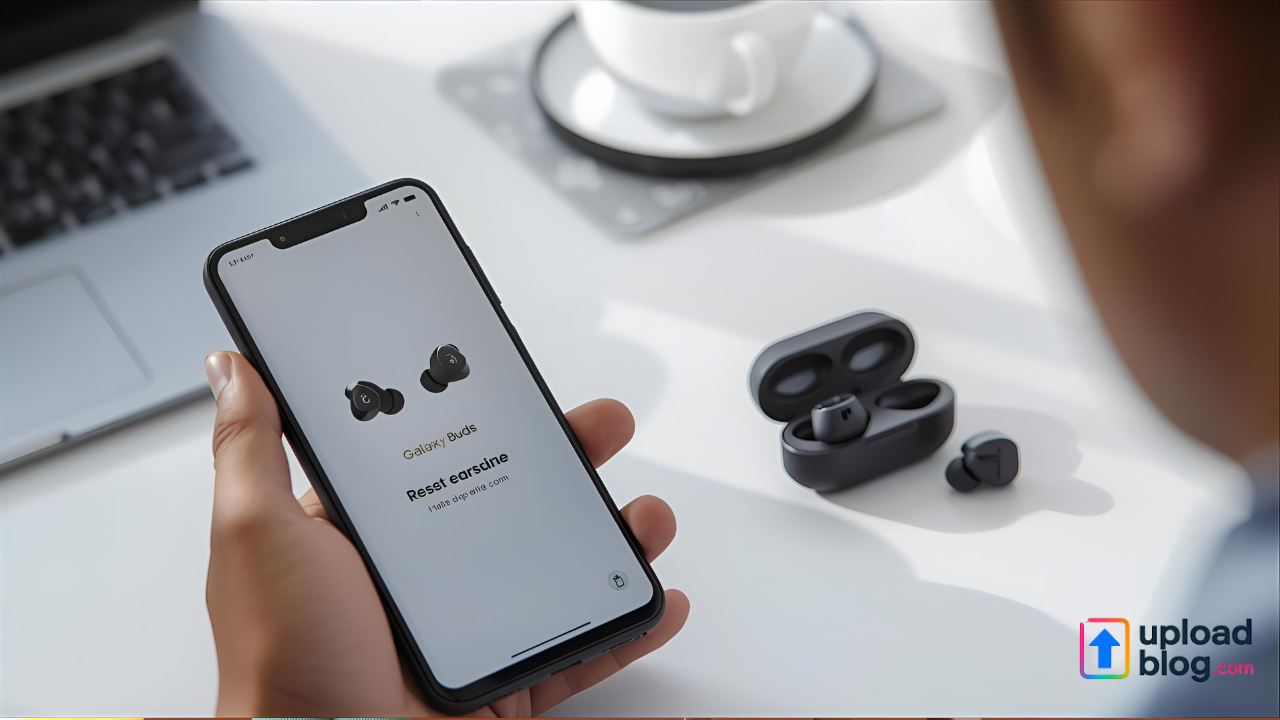
If your earbuds aren’t connecting properly, sound distorted, or one side isn’t working, a reset can often solve the issue. Knowing how to reset Galaxy Buds is essential for restoring factory settings, clearing pairing problems, and improving performance.
You May Like: How Modern Wireless Audio is Transforming the Way We Listen
This step-by-step guide will walk you through how to reset all major Galaxy Buds models—including Buds, Buds+, Buds Live, Buds Pro, Buds2, and Buds FE—using both the Galaxy Wearable app and manual methods.
When Should You Reset Your Galaxy Buds?
You should consider resetting your Galaxy Buds if you experience any of the following issues:
- Buds not connecting to your phone or laptop
- Audio cutting in and out
- Touch controls not responding
- Battery or charging issues
- Pairing problems after switching devices
A reset removes all paired devices and restores your earbuds to factory condition.
How to Reset Galaxy Buds Using the Galaxy Wearable App
This is the easiest and safest way to reset your earbuds.
Step 1: Open the Galaxy Wearable App
Make sure your Galaxy Buds are connected to your smartphone via Bluetooth. Open the Galaxy Wearable app.
Step 2: Go to Earbuds Settings
Tap on Earbuds settings or About earbuds depending on your Buds model.
Step 3: Tap “Reset”
Scroll down and select Reset. A confirmation prompt will appear.
Step 4: Confirm Reset
Tap Reset again to confirm. Your Galaxy Buds will restart and return to factory settings.
After this, you can pair them again as new.
How to Manually Reset Galaxy Buds (Without the App)
If you no longer have access to the Galaxy Wearable app or your buds aren’t connecting at all, follow these steps:
- Place both earbuds in the charging case.
- Close the lid and wait for about 10 seconds.
- Remove the earbuds from the case.
- Touch and hold both earbuds simultaneously for 10–15 seconds until the indicator light flashes.
- Once the light stops blinking, your Galaxy Buds are reset.
You can now reconnect them to your phone like new earbuds.
Reconnecting Your Galaxy Buds After Reset
After resetting:
- Open the Bluetooth settings on your phone.
- Select “Galaxy Buds” under available devices.
- Tap to pair and wait for confirmation.
You can also reconnect using the Galaxy Wearable app for more detailed customization options.
Extra Tip: Keep Firmware Updated
Outdated software can cause frequent disconnections and touch control glitches. To prevent this, always keep your Galaxy Wearable app and Buds firmware updated through your smartphone.
FAQs About Resetting Galaxy Buds
Q1: Will resetting delete my sound settings?
A: Yes. Resetting restores your Galaxy Buds to factory settings, removing all custom sound or touch configurations.
Q2: Can I reset Galaxy Buds without a phone?
A: Yes, by using the manual method through the earbuds and charging case.
Q3: My Galaxy Buds still won’t connect after reset—what now?
A: Try deleting the old pairing from your phone’s Bluetooth list and then reconnecting them as a new device.
Q4: Does resetting fix charging issues?
A: Often, yes—especially if software glitches are causing the problem. If not, try cleaning the charging contacts gently.
✅ Conclusion
Learning how to reset Galaxy Buds is one of the simplest ways to fix pairing errors, sound interruptions, or software bugs. Whether you’re using Buds Pro, Buds2, or Buds Live, the reset process is quick and helps restore performance to like-new condition.
Regular firmware updates and proper cleaning will help keep your earbuds running smoothly for years.