
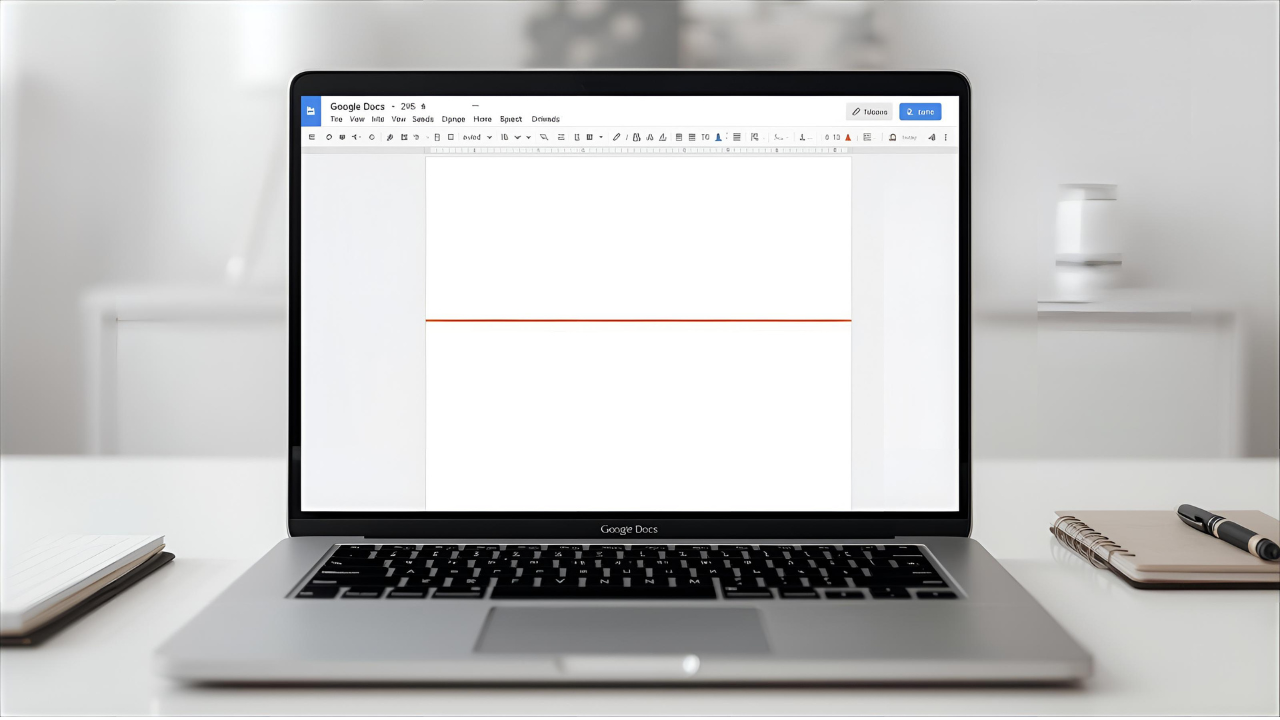
Adding a line in Google Docs is a simple yet essential formatting task that helps organize your document, separate sections, and make your content more professional. Whether you’re creating a report, resume, or presentation material, knowing how to add a line in Google Docs can save you time and improve the visual appeal of your work. In this guide, we’ll cover multiple methods to insert lines quickly and effectively.
Why Adding Lines in Google Docs is Useful
Lines in documents serve as separators, helping readers distinguish different sections. They can also add a professional touch to reports, resumes, or academic papers. Instead of manually drawing lines or inserting images, Google Docs offers built-in features that make this process fast and easy.
Method 1: Using the Horizontal Line Feature
Google Docs provides a native horizontal line tool for quick insertion. Here’s how to use it:
- Open your Google Docs document.
- Place your cursor where you want the line.
- Click on the “Insert” menu at the top.
- Select “Horizontal line” from the dropdown menu.
The line will automatically appear across the width of your page. This method is simple and ensures a clean, consistent line.
Method 2: Using Keyboard Shortcuts
A quicker method involves using keyboard shortcuts. Simply type three dashes --- and press Enter, and Google Docs will automatically convert it into a horizontal line. Similarly, you can use:
- Three underscores
___→ Enter - Three equal signs
===→ Enter
These shortcuts save time, especially when formatting large documents.
Method 3: Drawing a Line Manually
If you want more control over the line’s placement or thickness:
- Go to Insert > Drawing > + New.
- Click on the Line tool in the drawing panel.
- Draw your line as needed.
- Click Save and Close to insert it into your document.
This method allows you to customize line style, thickness, and color, making it ideal for professional or creative projects.
Method 4: Using Tables for Line Effects
Tables can be used creatively to insert lines, particularly if you want horizontal or vertical separators:
- Go to Insert > Table, and choose a single row.
- Adjust the border color and thickness.
- Remove unnecessary cells to leave a clean line effect.
This trick is especially helpful for headers, footers, or document sections requiring distinct separation.
Tips for Using Lines in Google Docs
- Consistency: Stick to one type of line throughout your document.
- Spacing: Add space above and below the line to improve readability.
- Styles: Experiment with solid, dashed, or dotted lines using the Drawing tool for professional appeal.
- Internal Linking: Consider linking sections with horizontal lines in online documents to enhance navigation.
FAQs About Adding Lines in Google Docs
Q1: Can I change the thickness or color of a horizontal line?
Yes, using the Drawing tool method, you can adjust the line’s color, thickness, and style before inserting it into your document.
Q2: Can I remove a line once it’s inserted?
Absolutely! Simply click on the line and press Delete on your keyboard.
Q3: Is there a way to make lines only appear on certain pages?
Yes, by inserting lines manually in each section or using headers/footers for repeated line elements.
Q4: Can I use lines in Google Docs on mobile?
Yes, the horizontal line option is available in the mobile Google Docs app via Insert > Horizontal line.
Conclusion
Knowing how to add a line in Google Docs is a simple but effective way to enhance document readability and professionalism. Whether you use the built-in horizontal line, keyboard shortcuts, or the Drawing tool, each method is versatile and easy to implement. By following this guide, you can quickly separate sections, improve formatting, and create visually appealing documents that stand out.