
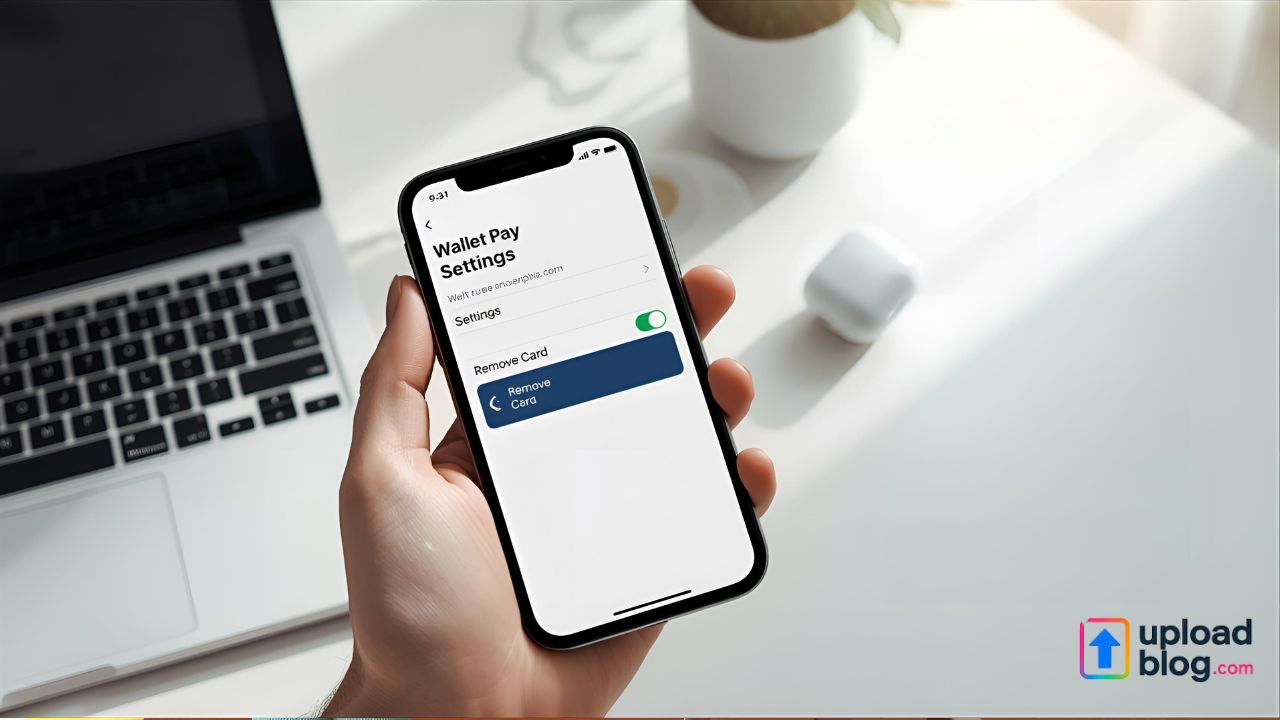
If you’re looking to simplify your digital wallet or secure your device, learning how to remove Apple Pay from your iPhone is a must. Whether you’re switching phones, troubleshooting payment issues, or simply don’t want your cards stored digitally anymore, this guide walks you through every step safely and effectively.
Understanding Apple Pay and Why You Might Remove It
Apple Pay allows users to make fast, contactless payments using their iPhone or Apple Watch. It’s secure and convenient — but there are times you may want to turn it off or remove your cards.
Here are some common reasons users remove Apple Pay:
- You’re upgrading to a new iPhone or selling your current one.
- You no longer use a certain credit or debit card.
- You’ve lost your iPhone or suspect unauthorized use.
- You prefer traditional payment methods for privacy reasons.
Whatever your reason, Apple provides simple ways to manage or completely remove Apple Pay from your device.
1. How to Remove Apple Pay Cards from Wallet App
The fastest method to remove Apple Pay from your iPhone is through the Wallet app.
Follow these steps:
- Open the Wallet app on your iPhone.
- Tap the card you want to remove.
- Select the More (•••) option in the upper-right corner.
- Scroll down and tap Remove This Card.
Repeat this for any additional cards you no longer want connected. This instantly disconnects the card from Apple Pay on your device.
2. How to Remove Apple Pay via iPhone Settings
You can also manage and remove cards from your iPhone’s settings:
- Go to Settings → Wallet & Apple Pay.
- Under Payment Cards, select the card you want to remove.
- Tap Remove Card, then confirm your action.
This method ensures your card is removed from both your Wallet and your Apple ID, preventing it from syncing across other Apple devices.
3. How to Remove Apple Pay Remotely Using iCloud
If your iPhone How to Do Split Screen on iPhone is lost, stolen, or being repaired, you can still remove Apple Pay remotely for safety.
Here’s how:
- Visit iCloud.com and sign in using your Apple ID.
- Go to Find My iPhone.
- Select your device from the list.
- Choose Erase iPhone.
This will delete all stored cards and disable Apple Pay immediately, ensuring no one can use your device for payments.
4. Turn Off Apple Pay Completely
If you don’t want Apple Pay active at all, you can disable it entirely:
- Open Settings → Wallet & Apple Pay.
- Toggle off Allow Payments on iPhone.
- Confirm when prompted.
Once disabled, Apple Pay won’t appear as a payment option in apps or stores until you turn it back on manually.
5. Remove Apple Pay from Your Apple ID
If you use Apple Pay across multiple devices (like a MacBook or iPad), you may want to remove it from your Apple ID.
To do this:
- Go to appleid.apple.com.
- Log in using your Apple ID credentials.
- Under Devices, select your iPhone.
- Click Remove All Cards.
This disconnects Apple Pay from all your linked Apple devices.
Best Practices for Apple Pay Security
- Always remove your Apple Pay cards before selling or trading in your device.
- Use Face ID or Touch ID for extra protection.
- Regularly check Wallet & Apple Pay settings to ensure your payment methods are up to date.
By following these steps, you’ll keep your digital wallet clean, organized, and secure.
FAQs About Removing Apple Pay
Q1: Will removing Apple Pay delete my Apple ID?
No. Removing Apple Pay only deletes your payment methods. Your Apple ID and other Apple services remain active.
Q2: Can I re-add my cards after removing them?
Yes. You can easily re-add your cards anytime through the Wallet app.
Q3: Does factory resetting my iPhone remove Apple Pay?
Yes. A factory reset automatically erases all stored payment information.
Q4: Can someone use my Apple Pay if my phone is lost?
No. Without your Face ID, Touch ID, or passcode, no one can access or use your Apple Pay.