If you’ve just bought a new pair of Bose earbuds, you’re in for a high-quality audio experience. But before you can enjoy your favorite music or podcasts, you’ll need to know how to connect Bose earbuds to iPhone.
Whether you’re using Bose QuietComfort Earbuds, Bose Sport Earbuds, or any other Bluetooth Bose model, pairing them with your iPhone is quick and simple. This guide will walk you through the process, explain how to troubleshoot common issues, and share tips to keep your connection stable.
Step 1: Prepare Your Bose Earbuds for Pairing
Before connecting, make sure your earbuds are fully charged and powered on.
- Open the charging case — your Bose earbuds will automatically power on.
- Enter pairing mode:
- Press and hold the Bluetooth button (found inside or on the back of the case) until you see a blinking blue light.
- The earbuds are now discoverable and ready to pair.
💡 Tip: If your earbuds were previously paired with another device, you may need to disconnect or reset them before pairing with your iPhone.
Step 2: Turn on Bluetooth on Your iPhone
Next, make sure your iPhone’s Bluetooth is enabled.
- Go to Settings → Bluetooth.
- Toggle the Bluetooth switch ON (it should turn green).
- Stay on this screen — your iPhone will start scanning for nearby Bluetooth devices automatically.
Step 3: Pair Bose Earbuds with iPhone
Once your iPhone detects your Bose earbuds, you’ll see them listed under “Other Devices.”
- Tap on your Bose earbuds’ name — for example, Bose QC Earbuds II or Bose Sport Earbuds.
- Wait a few seconds for the connection to complete.
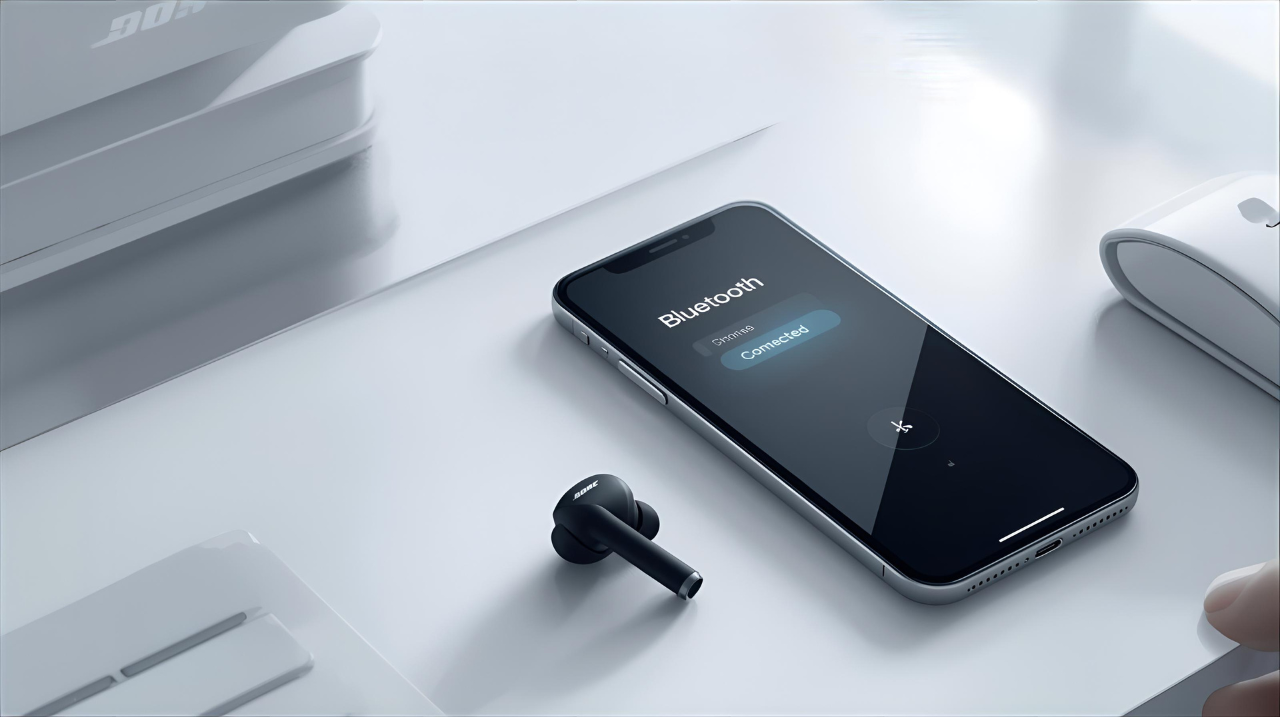
- Once paired, you’ll see them move to the “My Devices” list with a label showing Connected.
That’s it! Your Bose earbuds are now successfully paired with your iPhone.
✅ Tip: Once paired, they’ll automatically reconnect whenever you open the case near your iPhone with Bluetooth on.
Step 4: Connect Through the Bose Music App (Optional)
While Bluetooth pairing is enough to use your earbuds, the Bose Music app unlocks additional features.
- Download the Bose Music app from the App Store.
- Open it and log in or create a Bose account.
- The app will automatically detect nearby Bose devices and guide you through setup.
Using the app, you can:
- Customize EQ settings.
- Adjust noise cancellation levels.
- Rename your earbuds.
- Update firmware for better performance.
Step 5: Test the Connection
Play any song, podcast, or video to test the sound.
- Check if audio comes from both earbuds.
- Try pausing and playing using the touch controls.
- Adjust volume directly from your earbuds or iPhone.
If everything works, you’re ready to enjoy the signature Bose sound quality.
Troubleshooting: When Bose Earbuds Won’t Connect to iPhone
If your Bose earbuds don’t connect, here are some quick fixes:
- Restart Bluetooth:
Turn Bluetooth OFF and ON again on your iPhone. - Forget and Reconnect:
- Go to Settings → Bluetooth.
- Tap the “i” icon next to your Bose earbuds and select Forget This Device.
- Then pair them again as new.
- Reset Your Earbuds:
Place the earbuds in the charging case, then hold the Bluetooth button for about 10 seconds until the LED flashes. - Update the Bose App:
Sometimes, outdated firmware can cause pairing issues. - Restart Your iPhone:
A simple restart often fixes minor connectivity problems.
Extra Tips for a Stable Connection
- Keep your iPhone and earbuds within 10 meters (33 feet) of each other.
- Avoid interference from Wi-Fi routers, microwaves, or other Bluetooth devices.
- Always keep your Bose earbuds and iPhone software up to date.
🎧 Pro Tip: If you switch between multiple Apple devices, use the Bluetooth list to manually connect your earbuds to your iPhone when needed.
FAQs — How to Connect Bose Earbuds to iPhone
Q1. Why won’t my Bose earbuds show up on my iPhone?
Make sure they’re in pairing mode (blinking blue light). If not, reset the earbuds or remove them from other paired devices.
Q2. Do Bose earbuds work with iPhone 15 or newer models?
Yes, all Bluetooth-enabled Bose earbuds are compatible with iPhones running iOS 10 and above, including iPhone 15 series.
Q3. Can I use Siri with Bose earbuds?
Yes. Just press and hold the touch surface or multifunction button to activate Siri.
Q4. Why is the sound cutting out?
Move closer to your iPhone or remove any obstacles (like walls or metal objects) between your earbuds and device.
Q5. Can I connect my Bose earbuds to multiple devices?
Yes, some models support Multipoint — allowing connection to two devices (like your iPhone and laptop) simultaneously.
Final Thoughts
Knowing how to connect Bose earbuds to iPhone ensures you get the most out of your listening experience. With just a few simple steps, you can enjoy high-quality Bose sound, easy controls, and seamless wireless freedom.
If you ever run into issues, resetting and re-pairing usually solves the problem. And with the Bose Music app, your earbuds become even smarter and more personalized.
So go ahead — connect, play, and experience sound the Bose way.